Table of Contents
- How DuoKey DKE Works
- Why Not Self-Host the Key Service
- Before You Start
- Step 1: Log in to DuoKey Cockpit
- Step 2: Create a DKE Key
- Step 3: Deploy the DKE Service
- Step 4: Grant Admin Consent
- Step 5: Create the Sensitivity Label in Purview
- Step 6: Publish the Label Policy
- Step 7: Apply the Label in Microsoft 365
- Add Zero Trust Access Control
- Rotate Keys Without Touching Your Labels
- Pilot Before You Roll Out
- Troubleshooting
- References
Double Key Encryption (DKE) is the only Microsoft 365 protection mode where Microsoft cannot decrypt your content, because one of the two keys never enters Microsoft's cloud. The catch has always been operating that second key. Microsoft's answer is a sample .NET project you compile, host on IIS or App Service, wire to a key store and keep alive yourself.
DuoKey replaces all of that. The second key lives in DuoKey's MPC vault, the DKE endpoint is deployed from a wizard in DuoKey Cockpit, and every decrypt request passes a Zero Trust policy you control. This guide follows the same seven steps as the DuoKey DKE documentation: from an empty Cockpit tenant to a protected Word document.
How DuoKey DKE Works
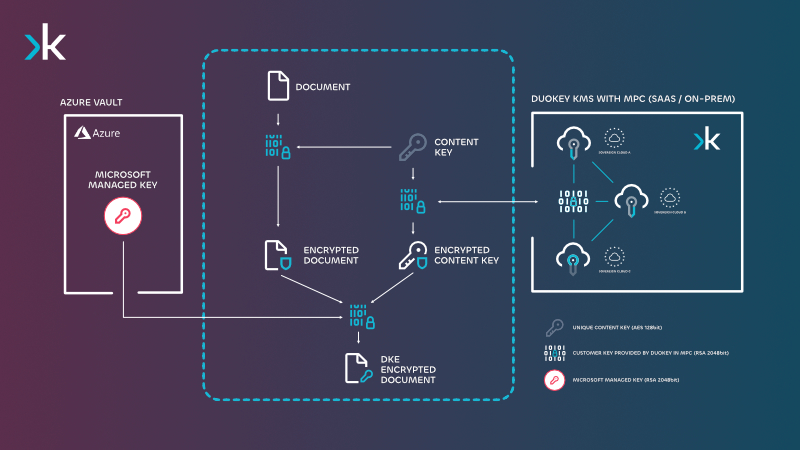
Both keys are required to open a DKE document. Microsoft holds one in Azure RMS; you hold the other in DuoKey's MPC vault.
When a user applies a DKE sensitivity label in Word, Excel, PowerPoint, Outlook or Adobe Acrobat:
- The Office client encrypts the content with a key protected by your DuoKey key (Key 2), fetched from your DuoKey DKE endpoint.
- The result is then protected again with Microsoft's Azure RMS key (Key 1).
- To open the document, the client needs both. Azure RMS checks the user's rights; DuoKey checks the user's identity token and your access policy before unwrapping Key 2.
DuoKey's key is never held whole on any single machine. It is split across independent MPC nodes, and the unwrap is computed jointly, so neither Microsoft, nor DuoKey staff, nor an attacker who compromises one node can recover it. You can see the full flow, live, on each service's detail page in Cockpit:
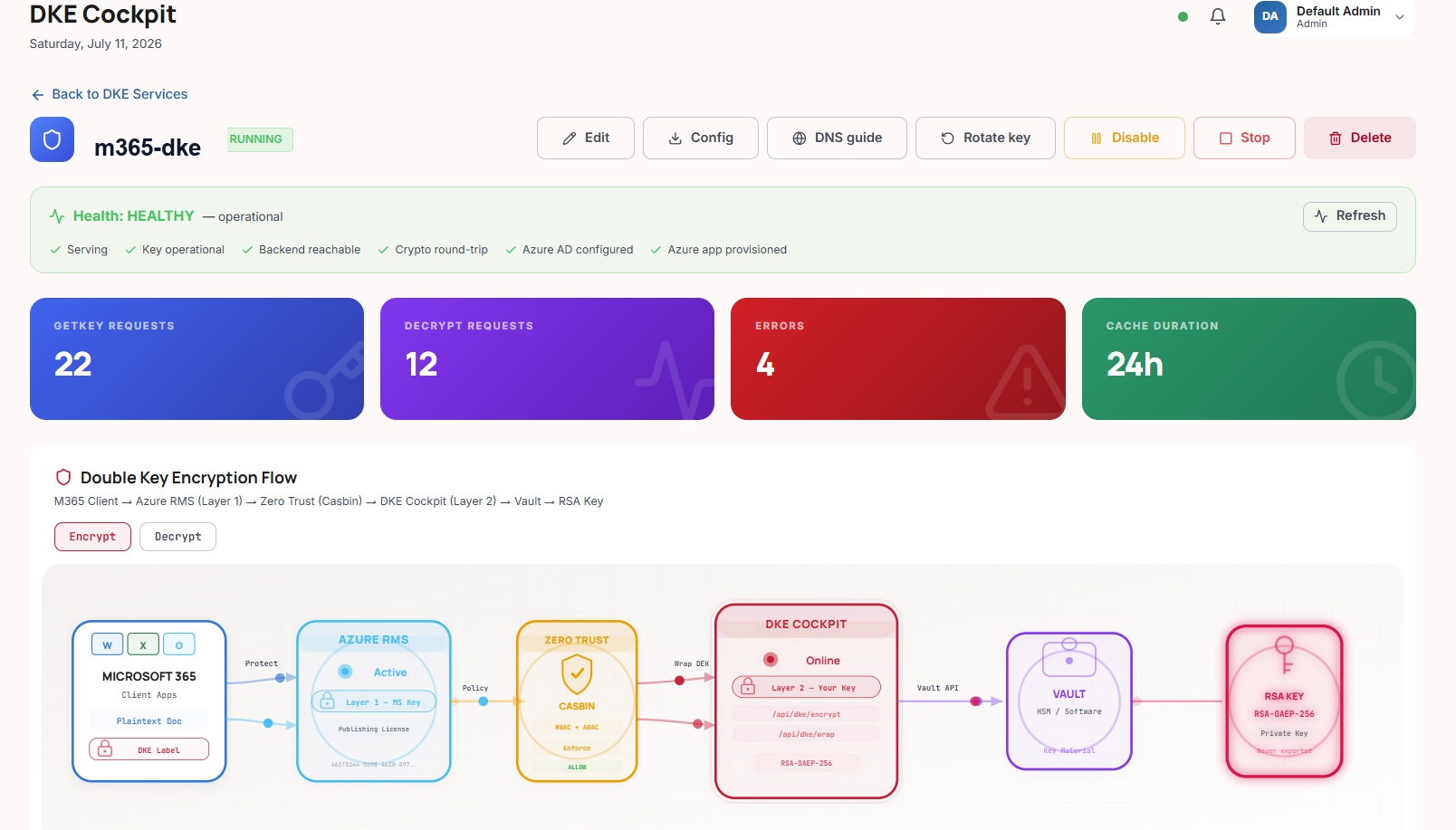
A running DKE service in DuoKey Cockpit: health checks, GetKey and Decrypt counters, cache duration and the end-to-end Microsoft 365 → Azure RMS → Zero Trust → Cockpit → vault flow.
Why Not Self-Host the Key Service
Microsoft documents DKE with a reference key store you build yourself. It works for a lab. In production, every piece of it becomes your problem.
| Microsoft sample (self-hosted) | DuoKey DKE |
|---|
| Key service | Compile the .NET sample, host on IIS or App Service | Deployed from a Cockpit wizard, no code |
| Key storage | File store or Key Vault you wire up | MPC vault, key never exists in one place |
| TLS, DNS, availability | Yours to build and monitor | Operated by DuoKey, health checks in Cockpit |
| Entra ID app registration | Manual, plus appsettings.json edits | Auto-provisioned when the service is enabled |
| Access control | Email or role allow-list in config files | ABAC policies: user, group, location, IP, time |
| Key rotation | Re-publish keys, update labels | One click, label URL unchanged |
| Audit | Build your own logging | Every GetKey and Decrypt logged per service |
| Sovereignty | Depends on where you host it | Swiss-operated, or on-premises / your cloud |
If you must keep the key service inside your own perimeter, DuoKey Cockpit can also run on-premises or on OpenShift: the setup steps below stay the same.
Before You Start
Microsoft side
- Licensing that includes Microsoft Purview Information Protection with DKE, such as Microsoft 365 E5 or E5 Compliance, for every user who protects or opens DKE content.
- Microsoft 365 Apps for enterprise (desktop) on the client machines. Office for the web and mobile apps cannot open DKE-protected files.
- A Global Administrator (or equivalent) for the one-time admin consent in Step 4.
- A Compliance Administrator to create and publish sensitivity labels in Purview.
- Your Entra ID tenant ID (Entra admin center → Overview).
DuoKey side
- Access to your DuoKey Cockpit tenant at cockpit.duokey.cloud (or your on-premises Cockpit URL).
- At least one vault in Cockpit to hold the DKE key.
Network
- Outbound HTTPS (443) from client machines to your DuoKey DKE endpoint,
login.microsoftonline.com and the Azure RMS endpoints (*.aadrm.com, *.protection.outlook.com). The complete list is on the URL whitelist page.
- Exclude those hosts from SSL inspection. A TLS-intercepting proxy breaks the DKE handshake.
Step 1: Log in to DuoKey Cockpit
Sign in to cockpit.duokey.cloud. If you manage several tenants, select the one that will own the Microsoft 365 keys. Everything that follows, keys, services and access policies, is scoped to that tenant.
Step 2: Create a DKE Key
- Open the Keys tab and click New Key.
- Select the vault that will hold the key.
- Choose RSA-2048. The Microsoft DKE client requires RSA-2048 and does not accept RSA-4096.
- Give the key a descriptive name that states its purpose and sensitivity, for example
key-confidential-finance or key-topsecret-hr.
- Review and click Generate the Key.
Cockpit generates the key pair inside the vault, assigns it a unique External ID and activates it. The private key is never exported.
Step 3: Deploy the DKE Service
The DKE service is the HTTPS endpoint Office calls to fetch the public key and to request decrypts. In Cockpit, open DKE 365 and click Deploy new service. The wizard has five screens:
- Key. Select the vault and the RSA-2048 key from Step 2. Cockpit runs a preflight check (key validity, backend reachability and a wrap/unwrap round-trip) before letting you continue.
- Service. Enter a name and description, keep the algorithm at RSA-OAEP-256, and set the cache duration: how many hours the previous key keeps serving requests after a rotation (default 24).
- Identity. Select your identity provider and enter your Azure tenant ID, client ID and audience. Cockpit uses these to auto-provision the Entra ID app registration. Do not leave the tenant ID empty in production: without it the service runs in a permissive test mode.
- Access control. Optionally bind an access policy now (you can add one later, see Zero Trust), and optionally enable mTLS for an extra transport check on decrypt calls.
- Review. Check the summary and click Deploy.
The service starts in the Provisioned state. Enable it: it moves to Running and, if no Entra ID app exists yet, Cockpit creates one for you.
Then open the service's details page and copy its DKE Access URL. It looks like this:
https://<service-id>.duokey365.com/dke/<key-id>
You do not need to build it by hand. This is the URL you will paste into the Purview label in Step 5.
Step 4: Grant Admin Consent
The DKE service is an Entra ID application that sits outside your tenant, so a Global Administrator must consent to it once. This lets Office request tokens for the DuoKey endpoint on behalf of your users.
- In Cockpit, open your DKE service, click Edit, and move forward to the Service API section. Copy the Azure DKE Client Id.
- Build the consent URL with your tenant ID and that client ID:
https://login.microsoftonline.com/<tenant-id>/adminconsent?client_id=<azure-dke-client-id>
- Open it in a browser while signed in as a Global Administrator and click Accept. You are redirected to the Cockpit login page when it succeeds.
- Optional check: the service now appears in the Entra admin center under Enterprise applications, under the name you gave it.
Step 5: Create the Sensitivity Label in Purview
In the Microsoft Purview portal, go to Information Protection → Sensitivity labels → Create a label.
- Name and description. For example
Highly Confidential - DuoKey DKE, with a user-facing description that explains when to use it.
- Scope. Select Files and Emails. DKE does not apply to meetings, groups or sites.
- Protection settings. Select Control access only.
- Access control.
- Assign permissions to the users or groups who may open this content, with the right level (Viewer, Reviewer, Co-Author, Co-Owner).
- Set offline access. Choose Never for the most sensitive content (HR records, source code, financial results): a revoked user then cannot reopen a cached copy. Choose Always only for less sensitive content; users keep access for up to 30 days after their rights are removed.
- Tick Use Double Key Encryption and paste the DKE Access URL from Step 3, exactly as shown in Cockpit.
- Content marking (optional). Add a header, footer or watermark so users see the document is DKE-protected.
- Review and click Create label.
Step 6: Publish the Label Policy
A label is invisible to users until a policy publishes it.
- On the Sensitivity labels page, select your new label and click Publish label. You can publish several labels in one policy.
- Target a pilot group first, not all users.
- Enable Users must provide a justification to remove a label or lower its classification.
- Name the policy and submit.
Publishing takes from a few minutes to several hours depending on the size of your tenant. Users must restart their Office apps to see the new label; occasionally a full sign-out or workstation restart is needed.
Step 7: Apply the Label in Microsoft 365
- Open a document in Word (or Excel, PowerPoint, Outlook).
- Click Sensitivity on the Home ribbon and select your DuoKey DKE label.
- The document is encrypted immediately, marked with the label, and can only be opened by users who are both granted by the label and allowed by your DuoKey access policy.
Back in Cockpit, the service's GetKey counter increases when the label is applied, and Decrypt each time an authorized user opens the file. Adobe Acrobat with Microsoft Purview Information Protection support can apply the same label to PDFs, using the same DuoKey service.
Add Zero Trust Access Control
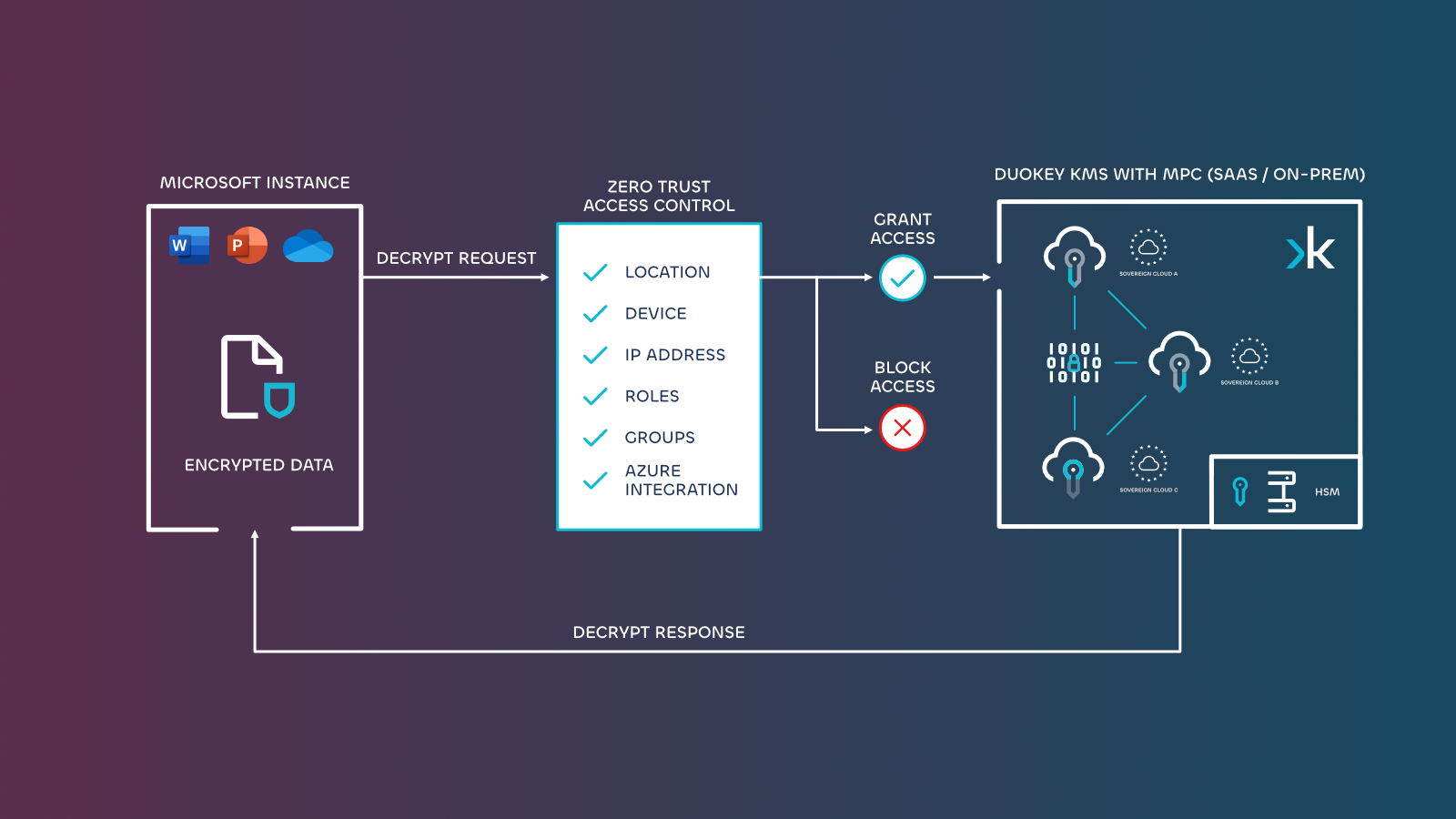
Every decrypt request is evaluated by DuoKey's policy engine before Key 2 is released.
Purview decides who has rights to a document. DuoKey adds a second, independent decision on every decrypt, under your control rather than Microsoft's. A Cockpit access policy combines several dimensions:
- Who: specific users or identity-provider groups.
- Where: allowed and blocked countries, IP ranges.
- When: business hours or date windows.
A typical DKE decrypt policy allows only members of the label's audience group, from your corporate countries, during business hours, and blocks sanctioned countries outright. Create it under Access policies in Cockpit, then bind it to the service (DKE 365 → Actions → Edit → Access control). It applies to the next decrypt request; no label change is needed. If you need to cut access entirely, disabling or stopping the service blocks every new decrypt request for documents protected by its key (cached offline licences aside, see Step 5). See Zero Trust access control for Microsoft 365 for worked examples.
Rotate Keys Without Touching Your Labels
Since Cockpit 2.0.8, the label URL identifies the service, not a specific key. Rotating is a single Rotate key click on the service page:
- New documents are encrypted with the new key. The Purview label does not change.
- The previous key moves to the service's key history as decrypt-only, so existing documents stay readable.
- When no document needs an old key any more, an administrator can retire it. A retired key can be restored.
- Renaming a key changes nothing for Office, because URLs carry IDs, not names.
Pilot Before You Roll Out
DKE changes how protected files behave: they are not indexed by Microsoft search, eDiscovery cannot read them, and Office for the web and mobile cannot open them. Run a pilot with real users before publishing the label widely. The DuoKey DKE pilot programme covers:
- desktop and laptop creation, editing and sharing;
- mobile and tablet behaviour, so users know what to expect;
- external sharing and B2B collaboration;
- revocation: removing a user, disabling a policy, and confirming access stops;
- audit: matching Cockpit logs against the actions users performed.
Restrict the DKE label to content that genuinely needs it (M&A files, legal privilege, regulated personal data, trade secrets) and keep standard Purview labels for everyday collaboration.
Troubleshooting
| Symptom | Most likely cause | Fix |
|---|
| "Word cannot save or create this file" | Client cannot reach the DKE endpoint | Office uses the WinHTTP proxy, not the browser proxy. Check the system proxy and allow outbound 443 to the DKE URL and Entra sign-in. |
| Browser opens the DKE URL but Office fails | SSL inspection or proxy | Add the DKE, Entra and RMS hosts to the SSL-inspection bypass list. |
| Label does not appear in Office | Policy not yet propagated | Wait for publishing, restart Office apps, then the workstation if needed. |
| "Azure Information Protection cannot apply this label" | Label not published or not in the user's policy | Check the label status and the policy's target users. |
| Permission error after applying the label | User not granted by the label, or blocked by the DuoKey policy | Check the label permissions, then the Cockpit access policy and service logs. |
| Key request rejected | Key ID mismatch or consent missing | Re-copy the Access URL from Cockpit (IDs are case-sensitive) and confirm admin consent in Enterprise applications. |
For client-side detail, enable MSIP logging (%LOCALAPPDATA%\Microsoft\MSIP\Logs) and reproduce the issue. The full DKE troubleshooting guide covers each case step by step.
Next Steps
You now have a customer-held key protecting Microsoft 365 content, served by DuoKey, governed by your own access policy, and rotatable without touching Purview. To scope a pilot for your tenant, talk to our team or explore DuoKey for Microsoft 365.
References